What Is an Android OS Tablet?
What Is an Android OS Tablet? The short answer is a touchscreen device that runs Google’s Android operating system. An Android Os Tablet can handle reading, video calls, web browsing, games, and many work tasks. Its familiar home screen usually includes app icons, settings, and notification controls. Exact features vary by brand and model.
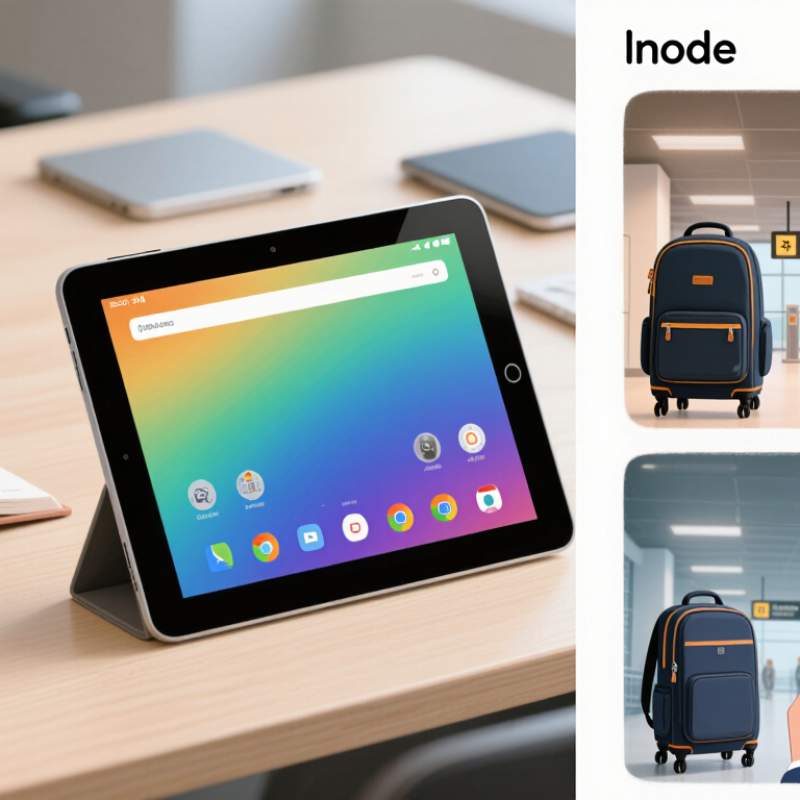
Picture a student opening a digital textbook beside a cup of tea, or a traveler checking a map at an airport gate. These everyday uses show why tablets sit between phones and laptops. Most have larger displays than phones, while remaining lighter and simpler to carry than many computers. Some support a keyboard or stylus, but these accessories may be sold separately. Check the product details before assuming they are included.
The Android name does not guarantee an identical experience. Manufacturers can customize the interface, and update schedules differ. Google apps and services may also vary by device or region. That distinction matters. A low-cost tablet may suit video and reading, yet feel slow with demanding games or many open apps. Screen quality, memory, battery life, software support, and warranty deserve a closer look than a headline specification alone. I would not treat one feature as proof that a tablet is right for everyone. It depends on how you plan to use it. This guide explains the operating system, common features, and practical buying considerations, helping you decide whether an Android tablet fits your daily routine.
Definition and Core Characteristics of an Android OS Tablet
An Android OS tablet is a touchscreen computer running Android, a mobile operating system built on a Linux kernel. Its interface organizes apps, notifications, settings, and files for touch input. A user might open a reading app, split the screen to take notes, then adjust brightness from quick settings. Simple, but useful. The system also manages app permissions, such as access to the camera or location, and supports Wi-Fi; cellular connectivity depends on the model. Android’s open-source foundation allows manufacturers to adapt the software, so menus and update schedules can differ between tablets.
That flexibility can feel messy. App layouts may not suit a large screen, and update support varies. IDC reported that worldwide tablet shipments reached 147.6 million units in 2024, up 9.2% from 2023, indicating continued demand for this device category. Shipments measure devices sent to market, not how well each tablet works in daily use. For a practical check, open several apps, rotate the screen, and inspect whether text remains readable. Also check the operating-system version and the stated security-update period; those details affect long-term usability more than a polished product description.
How Android OS Works with Tablet Hardware and Apps
An Android OS tablet is a touchscreen computer whose operating system connects its physical parts with the apps you use. When you tap a photo, the display senses your finger and sends that input through the system. Software called drivers helps the operating system communicate with the screen, cameras, speakers, memory, and wireless components. The operating system also manages battery use, app permissions, and which tasks stay active in the background. The details vary by tablet, so two devices may respond differently to the same app.
That connection matters in everyday use. A reading app must fit its text to a wide screen, while a video call depends on the camera, microphone, and network working together. IDC reported 147.6 million tablet shipments worldwide in 2024, showing the scale of the wider tablet market—not Android sales alone. Sensor Tower’s State of Mobile 2025 report estimated $150 billion in global consumer spending across mobile app stores in 2024. These figures describe a large app economy, but they do not guarantee every app feels good on a tablet. Some interfaces still look stretched. App developers can adapt layouts for larger displays, while the operating system provides shared tools and rules. In practice, the fit can be imperfect. A quick test with the apps you rely on reveals more than a specification sheet.
Key Features of the Android Tablet User Experience
What Is an Android OS Tablet?
Key Features of the Android Tablet User Experience
An Android OS tablet combines a touch-first interface with the flexibility of a general-purpose device. The home screen can hold app shortcuts and widgets, such as a calendar or weather panel. You can rearrange these elements to suit reading, study, or everyday tasks. Small details matter. Quick settings provide fast access to Wi-Fi, brightness, and other controls, while notification cards keep messages visible without opening each app. On larger screens, supported apps can share space in split-screen view. It feels flexible, though not every app uses the extra room well.
The experience varies with screen size, software version, and app design. Some apps stretch across the display; others leave wide margins or keep phone-sized layouts. That inconsistency can make switching between tasks feel less smooth than expected. A keyboard, whether on-screen or connected separately, can help with longer writing, but touch remains central to navigation. Text scaling and accessibility options can make menus easier to read. It is worth checking them early. I would not call every setting easy to find; menus sometimes take a bit of exploring. A few minutes spent adjusting display, notification, and privacy controls can make the tablet feel more comfortable for daily use.
What Is an Android OS Tablet? — Key Features of the Android Tablet User Experience
Adaptive Layout Width Breakpoints
Android adaptive layouts commonly use 600 dp and 840 dp of available window width as breakpoints between compact, medium, and expanded window size classes. These are layout thresholds, not measurements of a tablet’s physical screen.
Common Types and Uses of Android OS Tablets
An Android OS tablet is a touchscreen computer that runs Android, a mobile operating system. It can install compatible apps, connect to Wi-Fi, and support touch, keyboard, or stylus input. Screen size, memory, battery life, and software support vary by model, so the operating system alone does not tell you how capable a tablet will feel. Small details matter.
Common types include compact tablets for reading and travel, standard-size models for browsing and video, and larger-screen tablets for drawing or split-screen work. Some are designed for children or shared classrooms, with simpler controls and durable cases. Others have rugged shells for dusty workshops or outdoor use. They are not identical. A larger screen may help with diagrams, but it can also make a tablet heavier to carry.
People use Android tablets to read ebooks, join video calls, manage calendars, watch lessons, and edit documents. A stylus can help mark up a PDF, while a keyboard makes longer writing less awkward. For basic tasks, a mid-range tablet may be enough; demanding creative apps need more memory and a responsive screen. Check update availability, storage, and app compatibility before buying. It is easy to focus on screen size and overlook battery life, a mistake I would reconsider after a long trip.
What Is an Android OS Tablet? - Common Types and Uses of Android OS Tablets
| Tablet type |
Typical screen size |
Common features |
Typical uses |
| Compact tablet |
About 7–8 inches |
Lightweight body, easy one-handed handling, and a screen suited to portable use. |
Reading, browsing, travel, video viewing, and basic apps. |
| General-purpose tablet |
About 10–11 inches |
Balanced screen size and portability; commonly supports Wi-Fi, cameras, and optional keyboard accessories. |
Web browsing, streaming, online learning, video calls, and everyday productivity. |
| Large-screen productivity tablet |
About 12–14 inches |
More room for split-screen apps, documents, drawing, and external keyboard or stylus use. |
Note-taking, document work, digital art, presentations, and multitasking. |
| Rugged tablet |
Often about 8–10 inches |
May include reinforced construction, a protective enclosure, and features designed for demanding work settings. |
Field inspections, inventory tasks, logistics, and use in workshops or outdoor settings. |
| Children’s tablet |
Often about 7–10 inches |
May come with a protective case and parental-control settings; available features vary by device and software. |
Educational apps, age-appropriate games, reading, and supervised media use. |
| Cellular-connected tablet |
Varies, commonly about 8–12 inches |
Includes mobile-network connectivity on supported models; service availability and costs depend on the carrier and plan. |
Internet access away from Wi-Fi, commuting, travel, and mobile work. |
Android OS tablets are touchscreen devices that run Android software. Screen sizes, features, and accessory support vary by model.
How to Choose an Android OS Tablet for Your Needs
What Is an Android OS Tablet?
How to Choose an Android OS Tablet for Your Needs
Start with the tasks you actually do. Reading recipes, joining video calls, and editing documents place different demands on a tablet. For web browsing and streaming, a clear screen and steady battery life may matter more than top-end processing power. Check the display in person if possible. Small text can look sharp in a shop but feel tiring after an hour.
Look for a recent Android version and clear information about security updates. Update policies vary, so confirm how long the tablet is expected to receive support. For multitasking, compare memory and storage, not just the processor name. If you save films or large files, expandable storage may help. It is not always available, though. A keyboard case or stylus can be useful, but only if your usual tasks need one.
Think about where you will use it. A Wi-Fi-only model suits home and office use, while cellular connectivity can help during travel. Check the weight, charging port, and speaker placement; these details become noticeable during daily use. Battery estimates are not guarantees, since brightness and apps affect runtime. There is no perfect choice. A cheaper tablet may handle your routine well, but an older model with uncertain updates can be a poor long-term bargain. Compare the features against your habits, then leave room for one thing you may have overlooked.

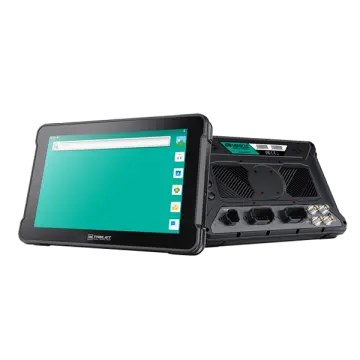 AT-10A
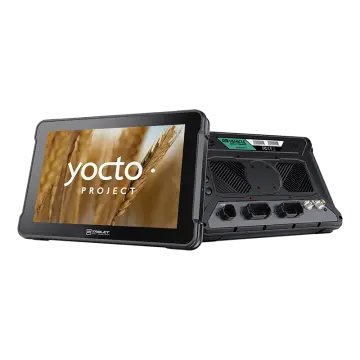 AT-10AL
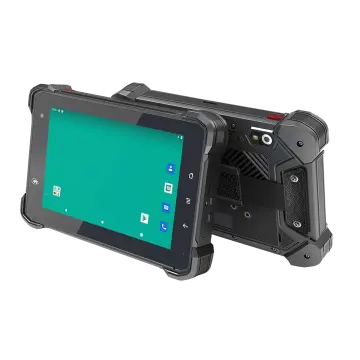 VT-7 GA/GE
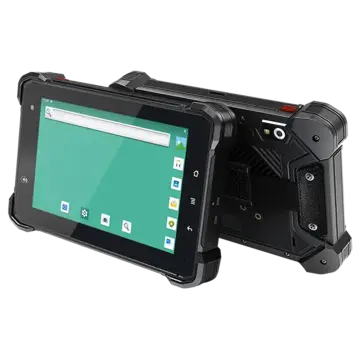 VT-7 Pro
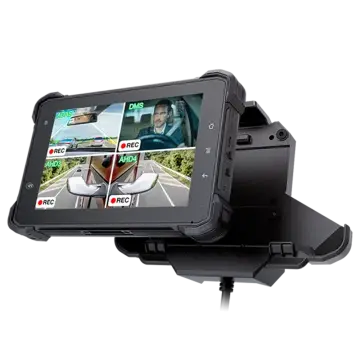 VT-7 PRO (AHD)
 VT-7A
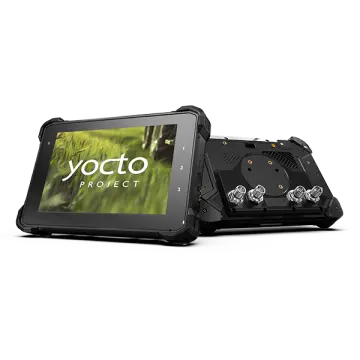 VT-7AL
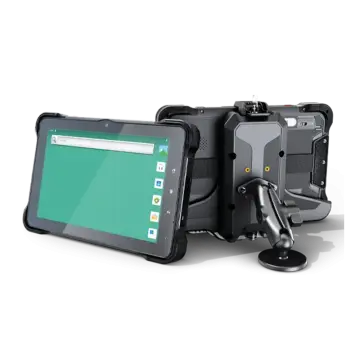 VT-10
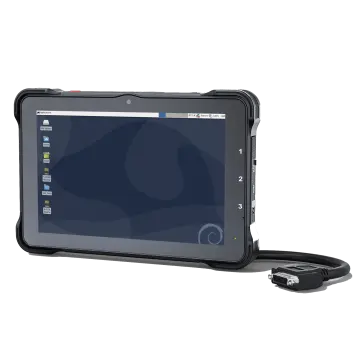 VT-10 IMX
 VT-10 Pro
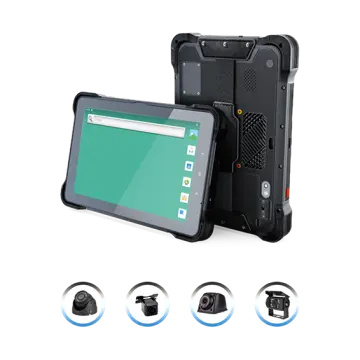 VT-10 Pro AHD
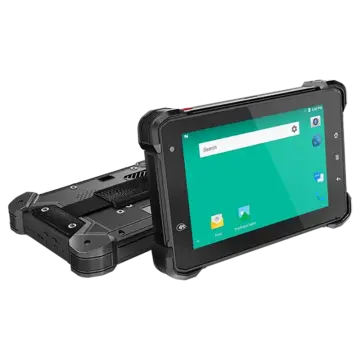 VT-7
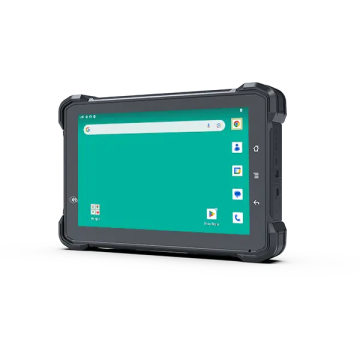 VT-7A PRO
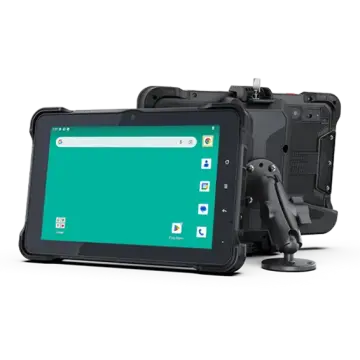 VT-10A Pro
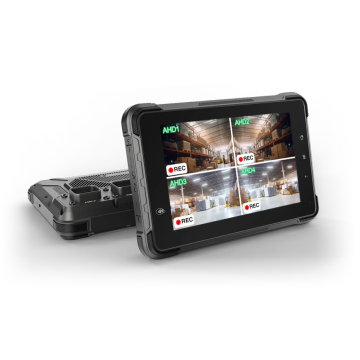 ST-7 Rugged Table
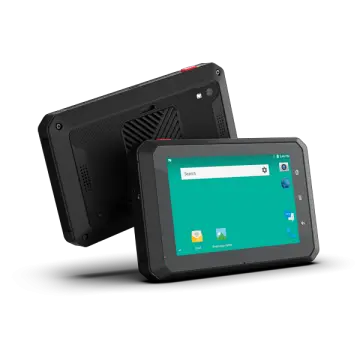 VT-5A
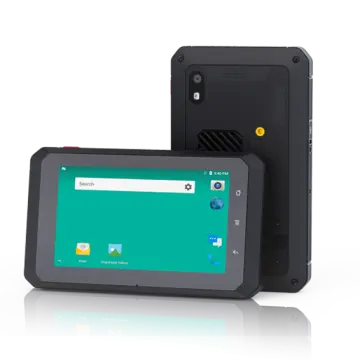 VT-5
 VT-BOX
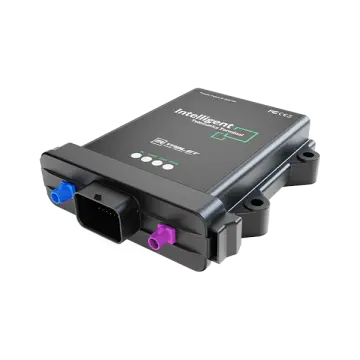 VT-BOX-II
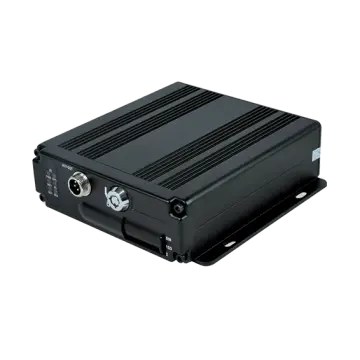 AI-MDVR040
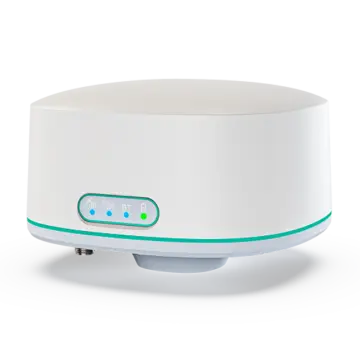 AT-B2
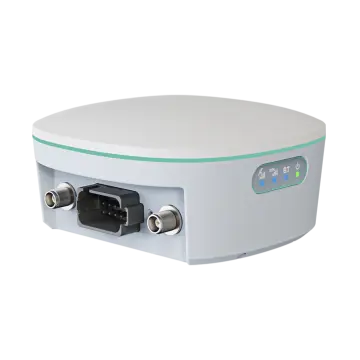 AT-R2